 CleanUpPhotos
Remove unwanted objects from photos with AI
Drag a box around anything (people, clutter, text) and our AI erases it, shadow and all. 2 free AI erases every day.


“When it came to erasing large objects, CleanUpPhotos produced some of the most natural-looking results.”The Washington Post – “Retouch and go: These tools help erase distractions in your photos”
Clean up a photo in three steps
No sign-up, no software to install and no editing skills needed.
Upload your photo
Drop a JPG, PNG or HEIC image onto the page, or choose one from your computer or phone.
Mark what to remove
Drag boxes around objects or paint over them with the brush. Mark as many areas as you like.
Erase and download
Click Erase and the AI fills the gaps to match the scene. Undo any step, then save your photo.
See the before and after
Drag the slider. Each result below was made with the CleanUpPhotos editor – no manual retouching.


Tourists and a beach umbrella erased from a holiday snapshot with Pro AI erase.
Everything you need for a clean photo
Simple tools backed by AI models trained to reconstruct what’s behind the things you remove.
Box selection
Drag a rectangle around people, cars, signs or logos and erase several objects in a single pass.
Precision brush
Paint over wires, shadows, cracks and blemishes. Resize the brush with a slider or the [ and ] keys.
Background removal
Cut the main subject out of its background automatically – ideal for product and profile photos.
Background replacement
Put your subject on a solid color or on a new photo of your choice, then fine-tune with the brush.
iPhone HEIC support
Upload photos straight from an iPhone – HEIC images are converted for you automatically.
No watermark, undo anytime
Step back through boxes, brush strokes and removals with Undo, and download clean, watermark-free results.
Made for everyday photo fixes
Travel photos
Remove tourists, photobombers and litter so your holiday shots look the way you remember them.
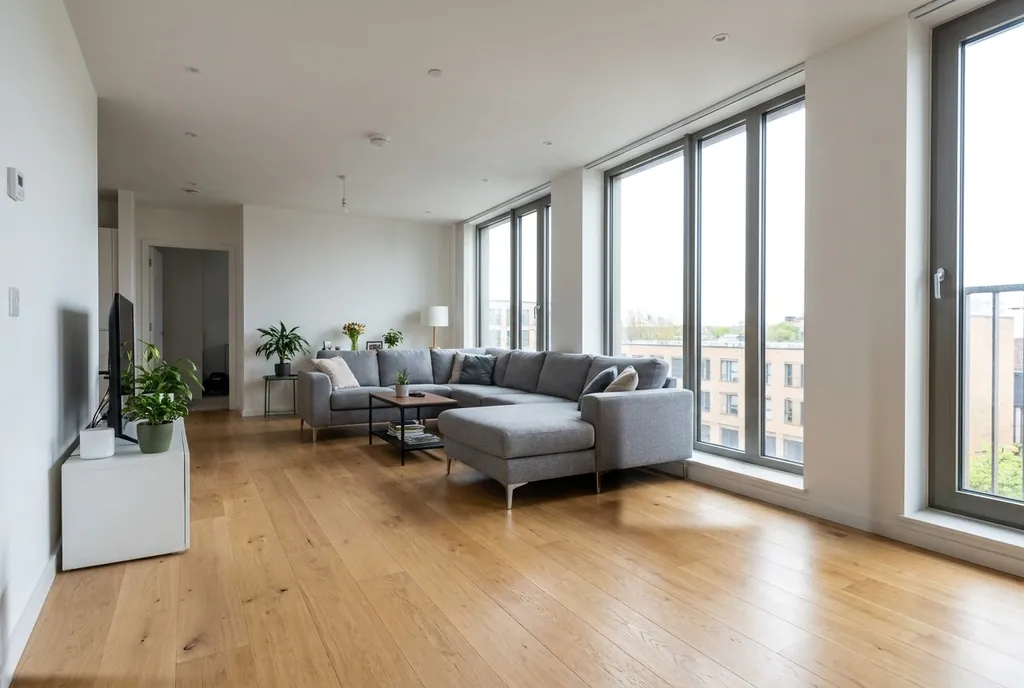
Real-estate listings
Declutter rooms and hide personal items so buyers and guests focus on the space.
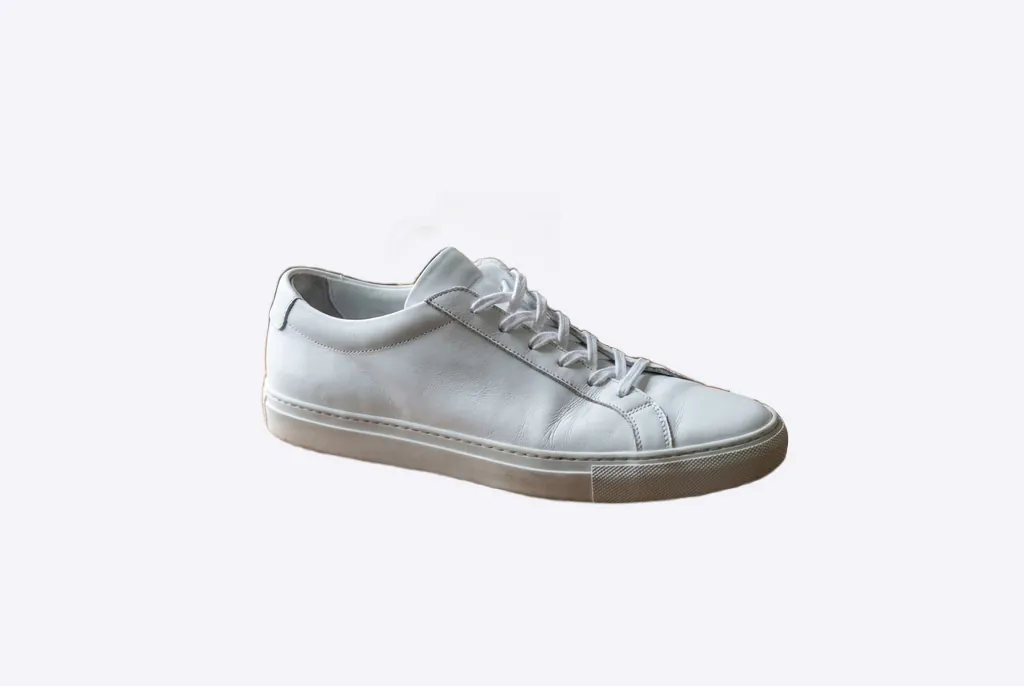
Product photos
Give marketplace and shop listings a clean, consistent background without a studio.
Social & architecture
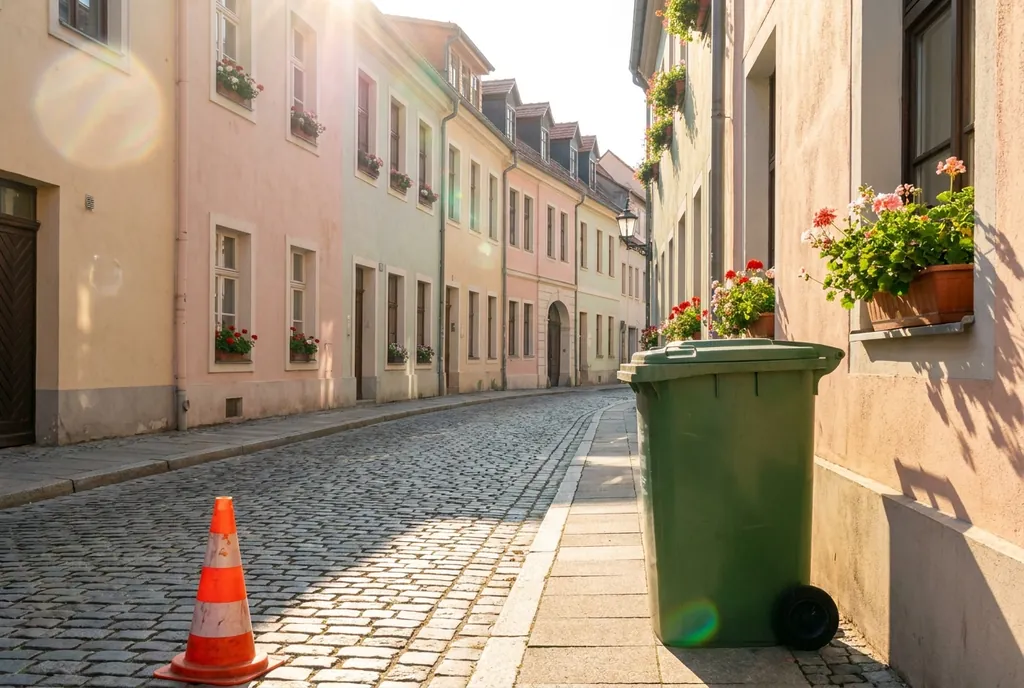
Take out bins, cones, cables and signs that distract from buildings and street scenes.
Frequently asked questions
Is CleanUpPhotos free?
Yes. You can remove objects and backgrounds in your browser for free, and downloads have no watermark.
Which file types can I upload?
JPG, PNG and iPhone HEIC photos up to 10 MB. HEIC photos are converted automatically so you can edit them like any other image.
How does the object removal work?
You mark the area you want gone, and an AI inpainting model fills it in using the texture, light and colors around it, so the result blends into the rest of the photo.
Should I use the box or the brush?
Use a box for compact objects such as a person, sign or car – you can draw several and erase them in one pass. Use the brush for long or irregular shapes like wires, shadows and cracks; press [ and ] to change the brush size.
Can I remove or change the background?
Yes. Click Remove bg to cut out the main subject, then keep it on a plain background, pick a solid color, or upload a photo to use as a new backdrop.
Does it work on my phone?
Yes. The editor runs in mobile browsers on iPhone and Android – no app to install. Upload straight from your camera roll and download the result.
What happens to the photos I upload?
Your photo is sent to our server only to perform the edits you ask for, and we never sell it or use it for anything else. Download your result before leaving the page. See the Privacy Policy for details.
Why does part of my result look smudged?
Inpainting works best when the whole object – including its shadow or reflection – is covered and the background behind it is fairly simple. For large objects, remove them in two or three smaller passes and use Undo if a pass doesn’t look right.
Learn to get better results
How to Remove Unwanted Objects From a Photo
Step-by-step: erase people, signs, trash, wires and other distractions with boxes or the brush.
How to Remove or Replace a Photo Background
Cut out the subject, get a clean backdrop, or swap in a new scene – and combine it with object removal.
7 Tips for Taking Photos That Need Less Cleanup
Small habits when shooting that save you editing time later.