 CleanUpPhotos
How to Remove or Replace a Photo Background
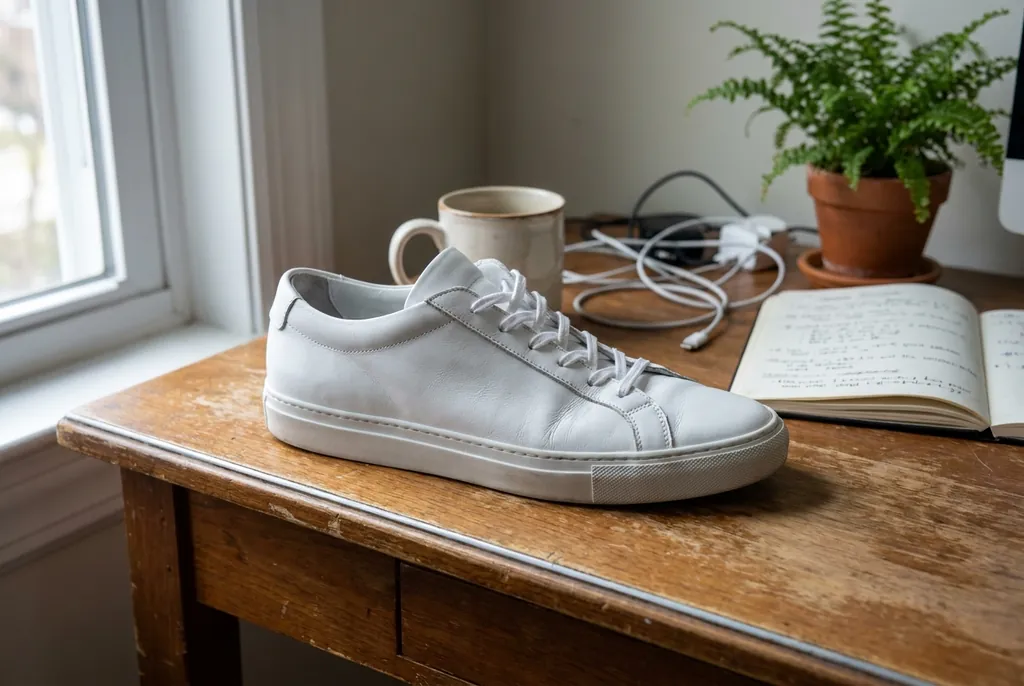
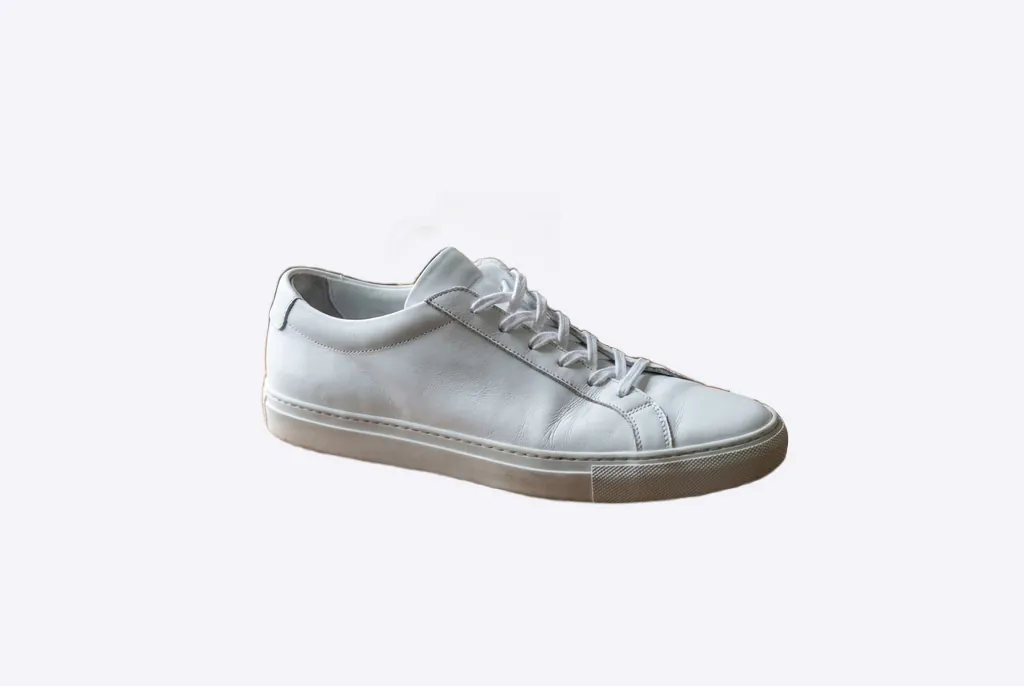
BeforeAfter
Besides erasing individual objects, CleanUpPhotos can remove the entire background behind your subject or replace it with a different image. This is useful for product listings, profile pictures, ID-style photos and simple composites.
Removing the background
- Upload your photo.
- Click Remove bg. The AI detects the main subject and separates it from everything behind it.
- Download the result as a cut-out of your subject.
Replacing the background
- Remove the background as above.
- Pick a solid color from the palette, or click Select bg photo to upload the image you want as the new backdrop.
- Download the combined photo.
Combining background and object removal
The tools can be used in sequence. For example, you can first erase a stray object that overlaps your subject, then remove the background – or remove the background first and then clean up any leftover details with the brush. Pick whichever order suits the photo.
Getting a good cut-out
- Contrast helps. A subject that stands out clearly from its background separates more cleanly.
- Keep the subject in focus. Blurry edges are harder to detect accurately.
- Match the lighting of a replacement background to your subject – light coming from the same direction makes the result far more believable.
- Watch fine details like hair and fur. Zoom in on the result before using it for anything important.